Push Notifications Guide
BETACrowsEye supports real-time push notifications for Frigate detection events. Receive instant alerts on your iPhone or iPad when your cameras detect activity, even when the app is closed.
Important: Notification alert images are accessed directly from your Frigate server and are never uploaded to any cloud service.
Prerequisites
Before setting up push notifications, ensure your system meets the following requirements:
- Frigate Server Version: Version 0.15 or later is required for push notification support
- Network Access: Your device must be able to access your Frigate server to retrieve notification images
- Server Restart Capability: You will need to restart your Frigate server during setup
Setup Instructions
Enabling push notifications requires a three-step setup process:
1Enable iOS Notification Permissions
Before you can receive notifications, you must enable notification permissions for CrowsEye in iOS Settings.
- Open iOS Settings app
- Navigate to Notifications
- Scroll down and tap CrowsEye
- Toggle "Allow Notifications" to ON
If you already granted notification permissions when you first opened CrowsEye, you can skip this step.
2Enable Notifications with CrowsEye Service
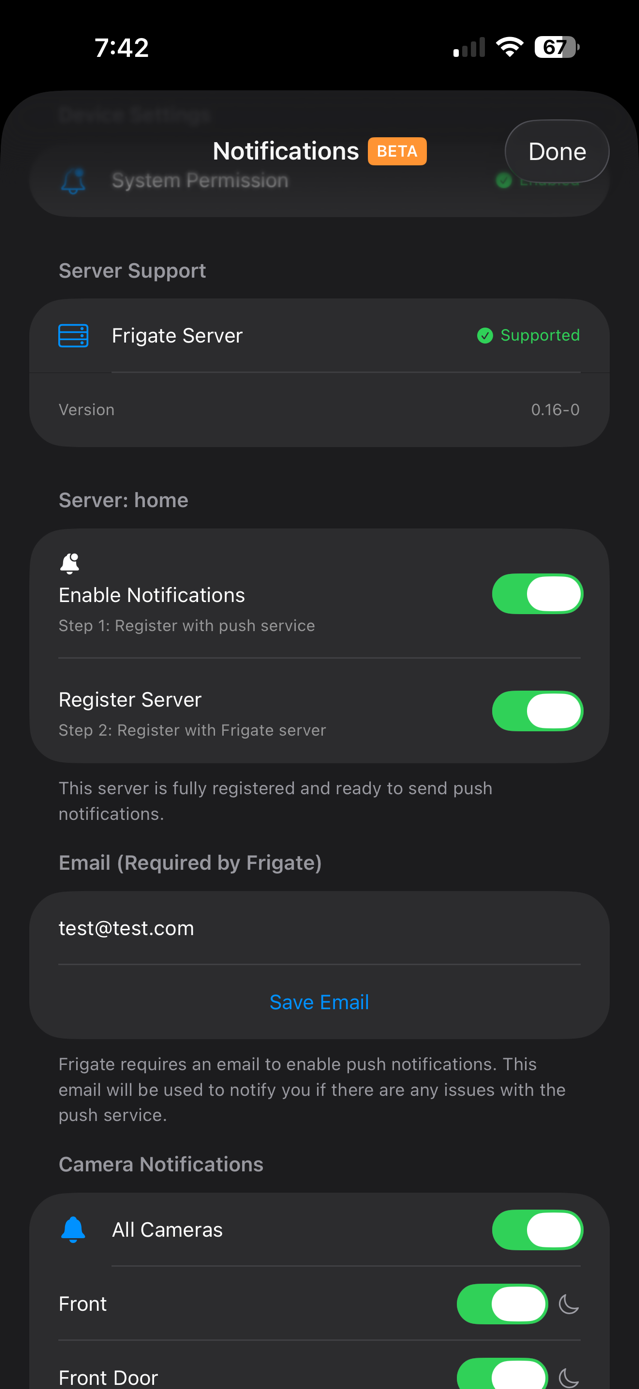
Next, register your device with the CrowsEye notification service by toggling on notifications in the app.
- Open CrowsEye and navigate to the Notifications page through the menu
- Toggle "Enable Notifications" to ON
- Wait for the registration to complete successfully
3Register Device with Frigate Server
Finally, register your device with your Frigate server by toggling on server registration.
- After completing step 2, toggle "Register Server" to ON
- Wait for the registration to complete successfully
- Your device is now registered with Frigate, but notifications will not work yet
Important: Server Restart Required
After registering your device with Frigate by toggling "Register Server" to ON, you must restart your Frigate server for notifications to work. This is a required step. Notifications will not function until the server has been restarted.
Restarting Your Frigate Server
After completing the registration, a message will appear in the app prompting you to restart your Frigate server. You can restart directly through the app using this prompt.
If the restart through the app does not work, refer to the Frigate documentation for instructions on how to restart your specific Frigate installation.
After restarting, your device will begin receiving push notifications for detection events based on your configured settings.
Notification Images
Push notifications include alert images showing what was detected. These images are retrieved directly from your Frigate server at the moment the notification is delivered to your device.
Understanding Image Access
Whether a notification image displays successfully depends on your device's ability to access the alert image from your Frigate server at the point the notification arrives. This is particularly important when you are away from home.
Configuring Internal and External URLs
To ensure notification images display both at home and away, configure both internal and external URLs for your server instance:
- Internal URL: Your server's local network address (e.g.,
http://192.168.1.100:5000) - External URL: Your server's internet-accessible address (e.g.,
https://frigate.example.com)
When properly configured, CrowsEye will automatically use the appropriate URL to retrieve notification images:
- At home: Uses the internal URL for fast local access
- Away from home: Uses the external URL to access images over the internet
Without both URLs configured, notification images may fail to load when you are away from your home network, even though the notification text will still arrive.
Cloudflare Zero Trust Integration
If you use Cloudflare Zero Trust to protect your Frigate server, you have two authentication options. The choice you make affects notification image reliability when away from home.
Cloudflare Service Tokens (Recommended)
Service tokens provide the most consistent access to notification images when you are away from home. Once configured, your device can access images at any time without additional authentication.
- Reliability: Images will load consistently in notifications, even when the app is not running
- Setup: Generate a service token in your Cloudflare Zero Trust dashboard and add it to CrowsEye server settings
- Best for: Users who want reliable notification images at all times
Cloudflare Browser Login
Browser login authentication will only work for notification images if your device is already logged in and has a valid authentication session at the point the notification arrives.
- Limitation: Images may fail to load in notifications if your session has expired or the app has not recently connected to the server
- When it works: Only when you have an active, valid Cloudflare authentication session on the device
- Best for: Users who primarily receive notifications while actively using CrowsEye or shortly after
Recommendation: For the most reliable notification image delivery when away from home, use Cloudflare service tokens along with properly configured internal and external URLs.
Configuring Notification Settings
After setup, you can customize notification behavior for each camera:
- Per-Camera Controls: Enable or disable notifications for individual cameras
- Granular Filtering: Configure which types of detections trigger notifications
- Temporary Suspension: Suspend notifications temporarily when you expect activity, then automatically resume later
Troubleshooting
Notifications not arriving
- Verify that your Frigate server has been restarted after device registration
- Check that notification permissions are enabled in iOS Settings for CrowsEye
- Ensure your Frigate server is running version 0.15 or later
- Verify that notifications are enabled for the specific camera in CrowsEye settings
Notification images not displaying
- Verify that both internal and external URLs are configured in your server settings
- If using Cloudflare Zero Trust with browser login, ensure you have an active session by opening the app
- Consider switching to Cloudflare service tokens for more reliable image access
- Check that your external URL is accessible from outside your network
Images work at home but not away
- Confirm that your external URL is properly configured and accessible from the internet
- If using Cloudflare Zero Trust, verify that service tokens are configured, or that you have an active browser login session
- Check that your firewall or router allows external access to your Frigate server